
A social post can become difficult before you have chosen a single color. You open a template, replace a few words, move the photograph, add another sentence, and suddenly every small adjustment disturbs something else.
It helps to separate the decisions.
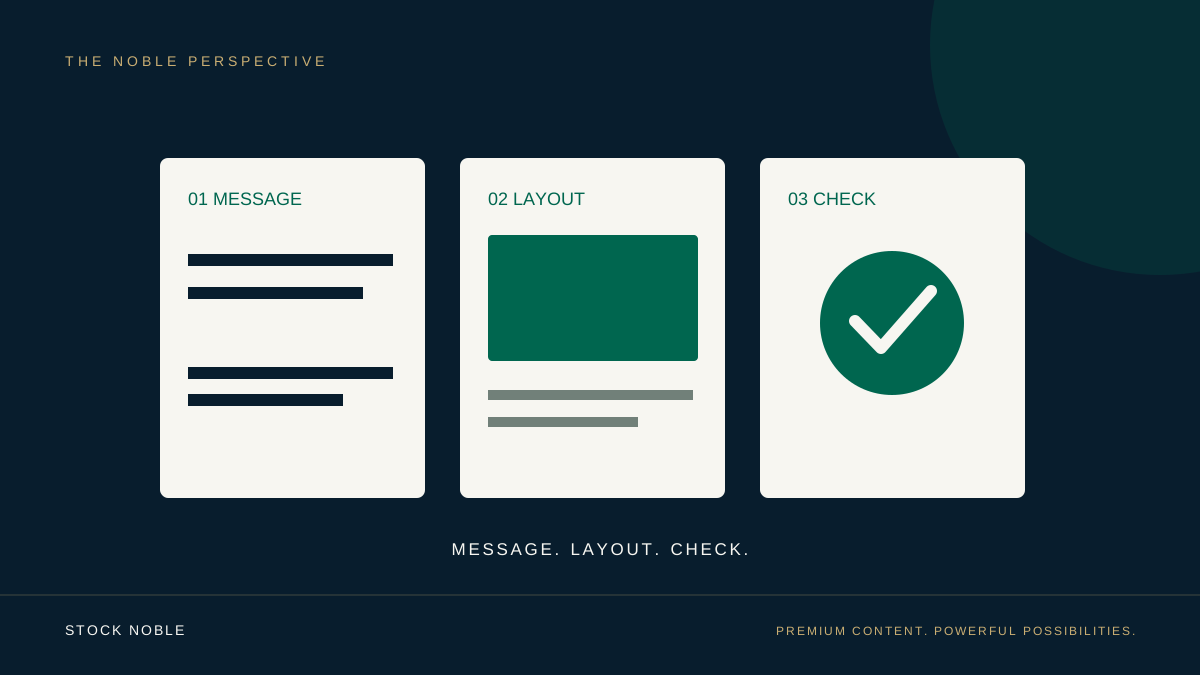
Build the post in three passes: message, layout, and viewing check. Each pass answers a different question, so you can solve one problem without trying to solve all of them at once.
For this tutorial, we will use an imaginary beginner art workshop. You can follow the same process for a product announcement, a class, a helpful tip, or a new piece of content.
Before you begin
Choose the place where the finished post will appear. Check that destination's current image requirements, including its shape and dimensions. Start a document that fits those requirements rather than assuming one canvas will suit every placement.
Have these items ready:
- One audience.
- One message.
- One intended next action.
- A suitable photograph or graphic you are permitted to use.
- An editing tool that lets you arrange text and images.
- A place to save the editable design separately from the exported image.
You do not need an elaborate brand system for this exercise. A small, consistent set of choices is enough to begin.
Pass one: make the message understandable
Write the text before styling it.
For the workshop example, the audience is someone curious about making art who feels inexperienced. The message is that they can try a first print. The next action is to view the workshop information.
A working text set is:
Make Your First Art Print
A beginner-friendly workshop
See workshop details
Now check what each line contributes.
The headline describes the outcome. The second line addresses the reader's concern about experience. The final line identifies a sensible next action.
Compare that with "Create. Explore. Discover." Those words may set a mood, but they do not explain this particular offer. Use them only if the rest of the post already supplies the missing meaning.
Put essential dates, prices, locations, or conditions where a viewer can find them. Some details may belong in the caption or destination page, but do not hide a condition that changes what the headline means.
Check the action against its destination, too. "Reserve your place" should lead to a reservation step. If the destination is an information page, "See workshop details" is the more accurate invitation.
At the end of this pass, you should be able to explain the post in one ordinary sentence without pointing at the artwork.
Pass two: give the message a visible order
Place the most important element first. In this example, let the headline lead.
Position the image so it supports the headline rather than interrupting it. If a busy photograph leaves nowhere comfortable for the words, try a different crop or give the text its own solid area.
Keep the supporting sentence near the headline. Group related information so the reader does not have to search the whole canvas to connect it.
Then place the next action where it follows naturally from the message.
Choose a small set of text styles. For example, use one clear heading style and one supporting style. A second font is an option, not an obligation. Differences in size and weight can create variety without adding another typeface.
Line up related edges. If the headline, supporting sentence, and action are left aligned, give them a deliberate shared starting point. Accidental differences can make a simple layout feel unsettled.
Leave room around the important text. If the headline will not fit comfortably, try shortening it or changing the line breaks before shrinking every word.
Finally, check the text against the actual background behind it. A color that works over a plain wall may disappear when the same words cross a bright window. A solid text panel can be more dependable than a heavy shadow.
At the end of this pass, the order should be visible: message, explanation, action.
Pass three: inspect what the reader will receive
Export a draft and open that exported file. Do not rely only on the editable canvas.
View it at a realistic size, preferably on the kind of screen your audience will use. Keep it at a normal viewing distance rather than leaning closer to rescue small text.
Can you read the headline comfortably? Can you understand the offer without guessing? Is the supporting text still useful at this size?
There is no single font size that guarantees a readable social graphic. The final display size, typeface, background, and amount of text all matter.
If the post feels cramped, remove unnecessary words before reducing the type again. If the image feels awkward, revisit the crop instead of stretching the photograph.
Now inspect the action. A button-shaped label inside an image is not automatically clickable. Use the caption, post link, or other supported destination feature to provide the real next step. Check that it works.
Make one revision, export again, and compare the actual files.
Your finishing checklist
You are ready for a final review when you can say:
- The post speaks to a recognizable audience.
- The main message is clear.
- The image supports that message.
- The text is comfortable to read at the intended size.
- Important information has not been cropped away.
- The next action matches a working destination.
- The editable source and final export are saved separately.
This does not promise a particular response. It gives the design a fair chance to communicate before you ask the audience to act.